It tells you. You don't have to ask.
A library this size can't be looked after by remembering to check on it. Cartmark watches the things that matter, sends a message when one of them needs you, and says exactly what to do about it.
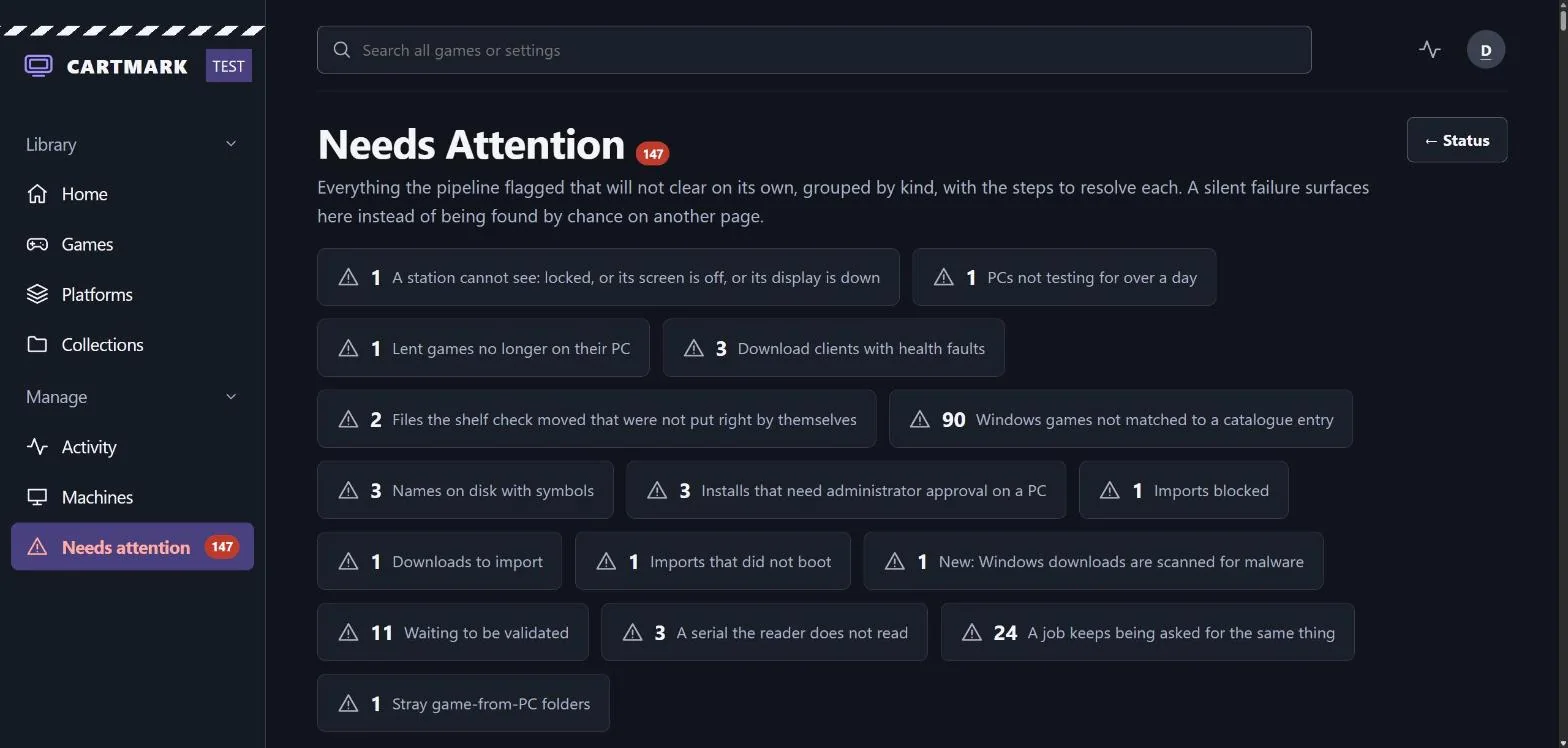
Needs attention: the problem, the count, and what to do
Everything that won't clear by itself lands in one place. Each line is a plain sentence, a count, and an instruction, and opens onto the detail. Fix the thing and the line goes away. Since 0.39 the list leaves out what settles itself: a blocked import that today's readers can prove is filed without you, and Re-check these runs the readers again over the whole list, one system or one cause.
The queue looks after itself
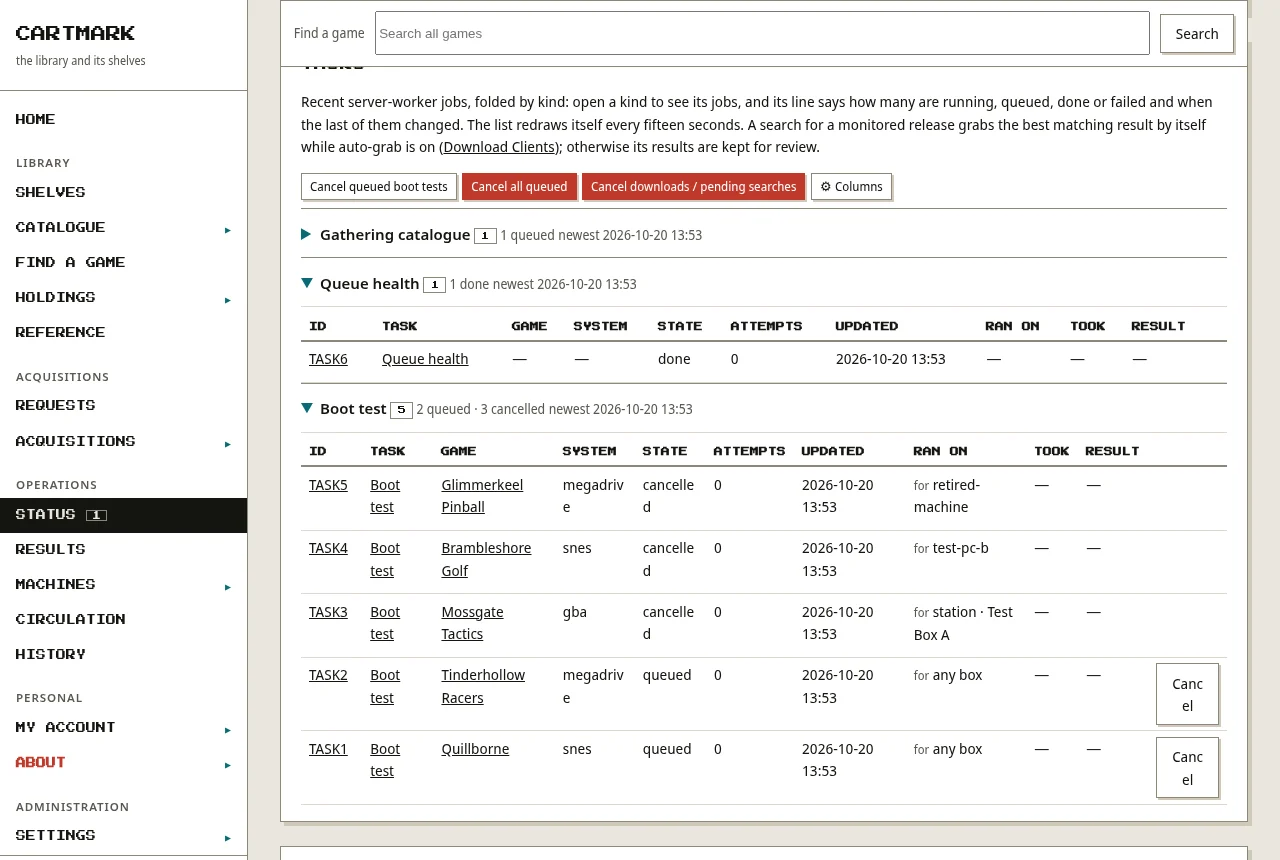
Twice an hour Cartmark goes over its own queue. A test waiting for a machine that is switched to watch only, or has not been seen for a day, is moved to any machine that can run it, or ended with its reason when it was that machine's own; a test for a machine that has left is ended. A download whose bytes have stopped moving for half an hour is stopped and tried again once the old one has let go.
The Tasks list says what each job is about: a virus scan names its game, how big it is, why it was queued and about how long it may take, from how fast this server scanned its last ten.
Heavy work in the quiet hours
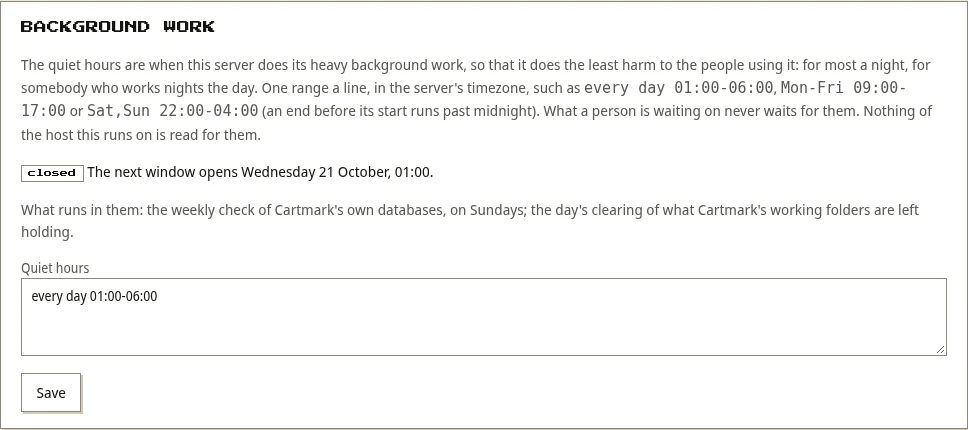
The server owner sets the weekly hours when heavy background work runs, in the server's own time, one range a line; the page says whether they are open now and when they next open. In them Cartmark checks its own databases each Sunday, refreshes the collections and clears what its working folders are left holding. Between presses it also checks the download clients, indexers and its other connections once a day, and watches the library disks' free room twice an hour; anything wrong goes on Needs attention.
Alerts where you already look
Alerts go to ntfy (a free, self-hostable push service, and Cartmark can run one of its own) or a Discord channel, with a house channel and a private one per person. Admins can also send any event to anything Apprise supports, which is most messaging services there are. On a Windows PC, dark cards like Steam's pop up for saves kept, games arriving, tests finished and players switched.
- A free game has appeared, with its claim link.
- A watched game has hit a price worth knowing about.
- A Twitch reward is ready, a campaign is about to end, or your Twitch sign-in is about to run out.
- A subscription game is leaving, or a charge is two days away.
- A wanted game was found, or has arrived and been tested.
- A loan ends in two days, or a game you lent has gone back.
- The backup is more than eight days old, the library disk is below the free space you set, or a connection has been failing for an hour.
- A testing machine has work waiting and has been silent for six hours.
Each alert links to the page that deals with it. Quiet hours keep it silent overnight, and nothing is sent that you didn't switch on. Codes that unlock or confirm an account go only to a channel proved to be yours alone, never the house's channel.
Subscriptions, counted honestly
Tick the service and tier you pay for. Once a day Cartmark reads that service's public list of games and counts them as yours to play, for exactly as long as the service offers them.
- Leaving soon: games about to leave the catalogue are listed first, and you can be told before they go.
- Already own it? The page says where, so you know which games you'd keep if you cancelled.
- Charge reminder: give a renewal date and tick the box, and you get a message 48 hours before you're charged.
- Still shows you deals: a game you only have through a subscription is not treated as owned. A good sale or a free copy you'd keep is still offered.
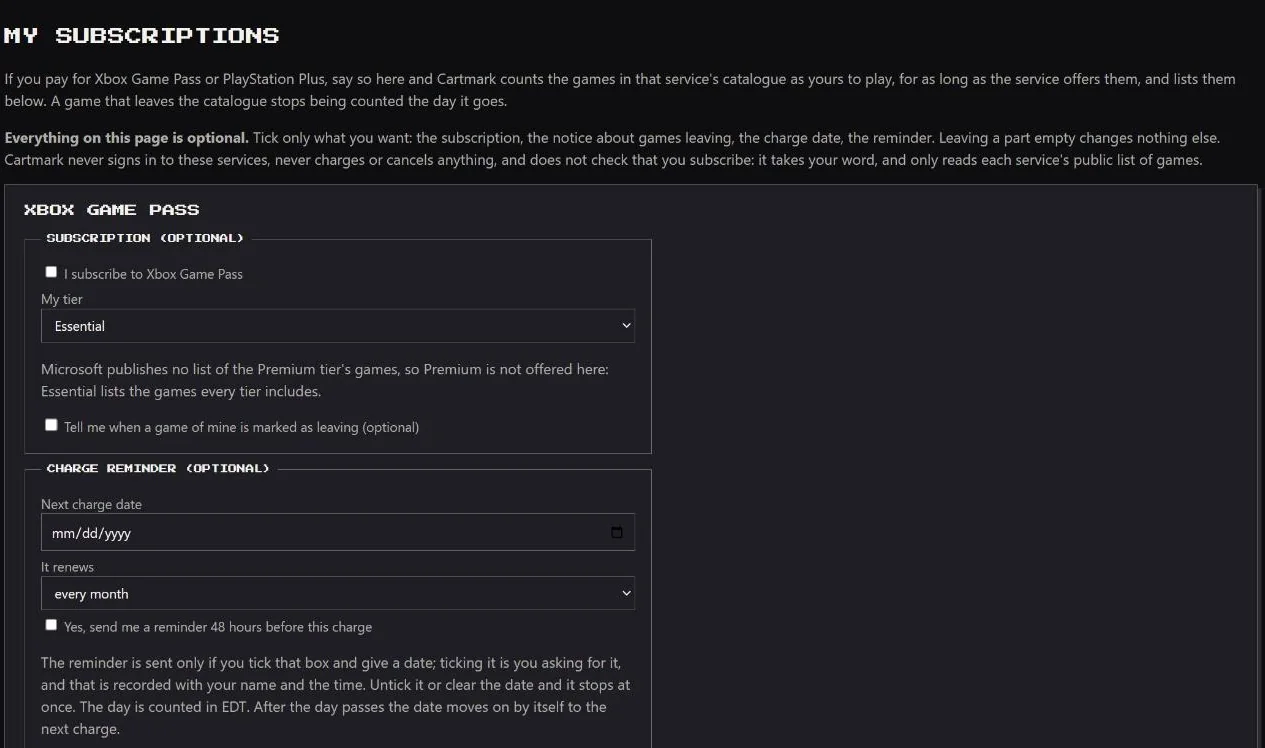
What it never does: sign in to these services, charge or cancel anything, or check that you really subscribe. It takes your word and only reads public lists.
A ready-made Grafana dashboard
Switch monitoring on in Settings and Cartmark hands its state to Grafana: the library, the download queue, boot verdicts from every machine, stores and deals, connection health, free space and backups. The dashboard and its alert rules come bundled. Download them, or let Cartmark install them for you.
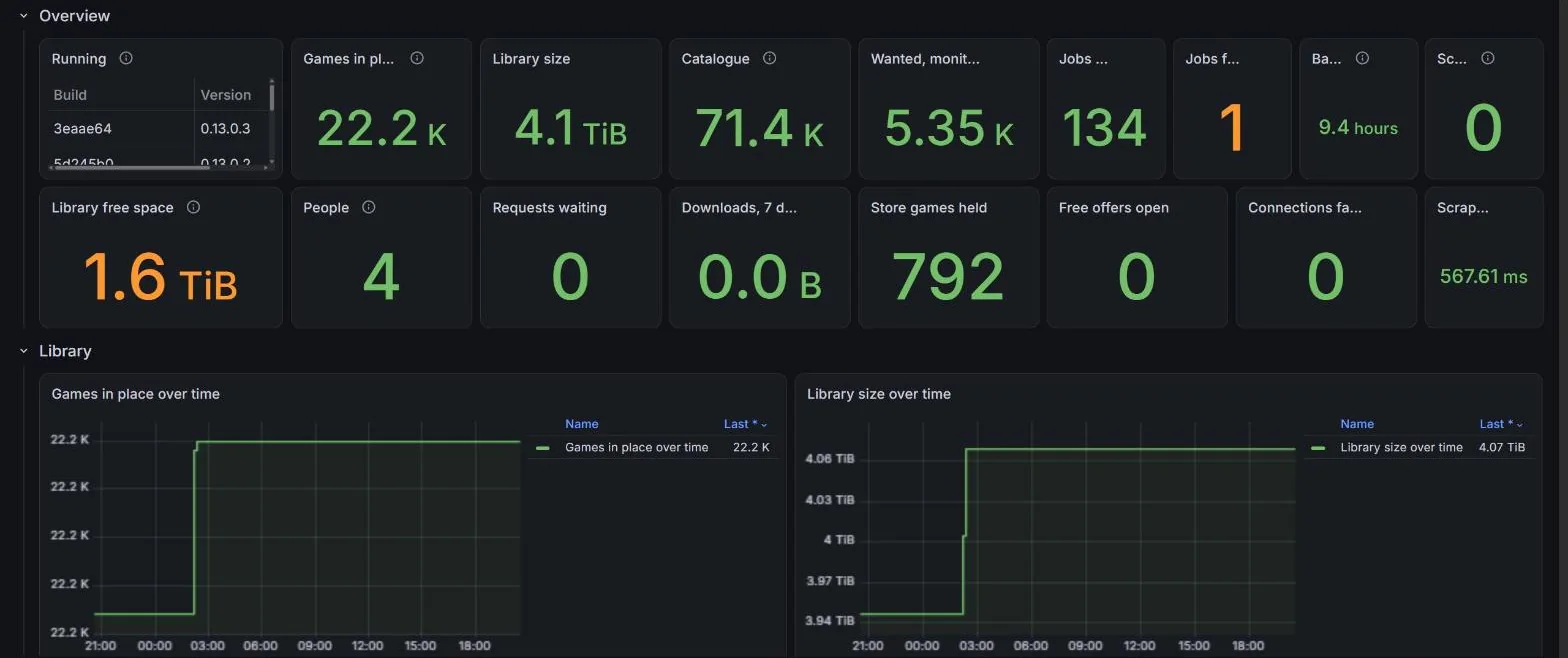
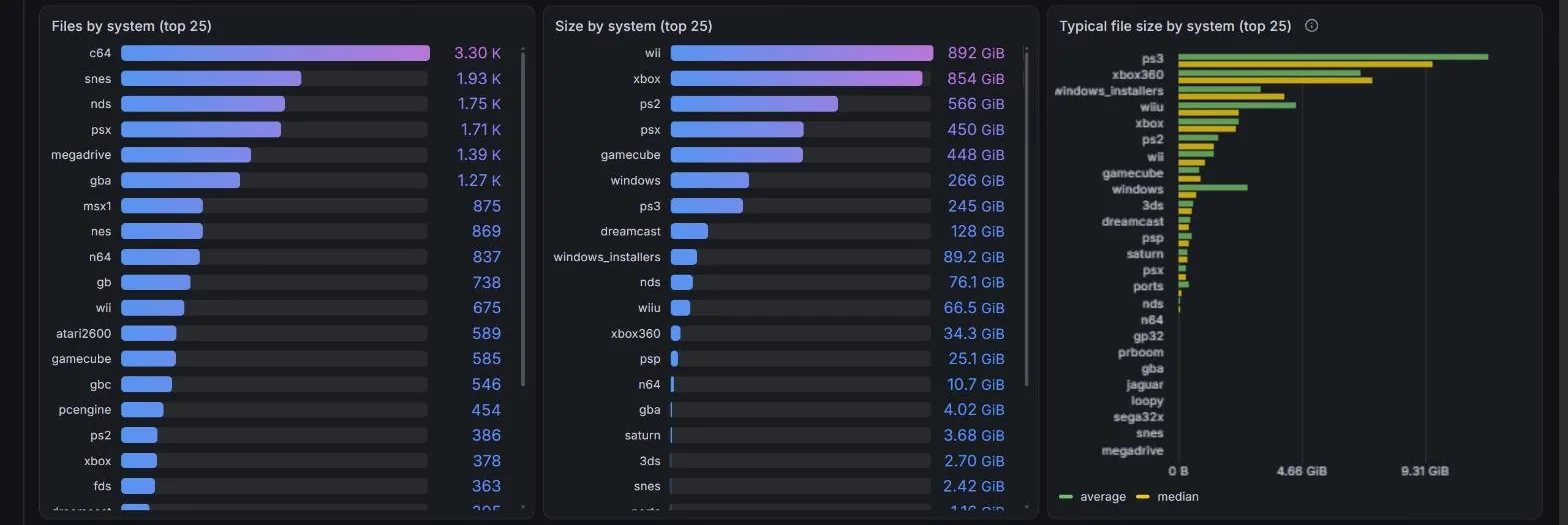
The figures are counts and ages only. Nothing in them names a game or a file, and the metrics page answers only to a token you create.
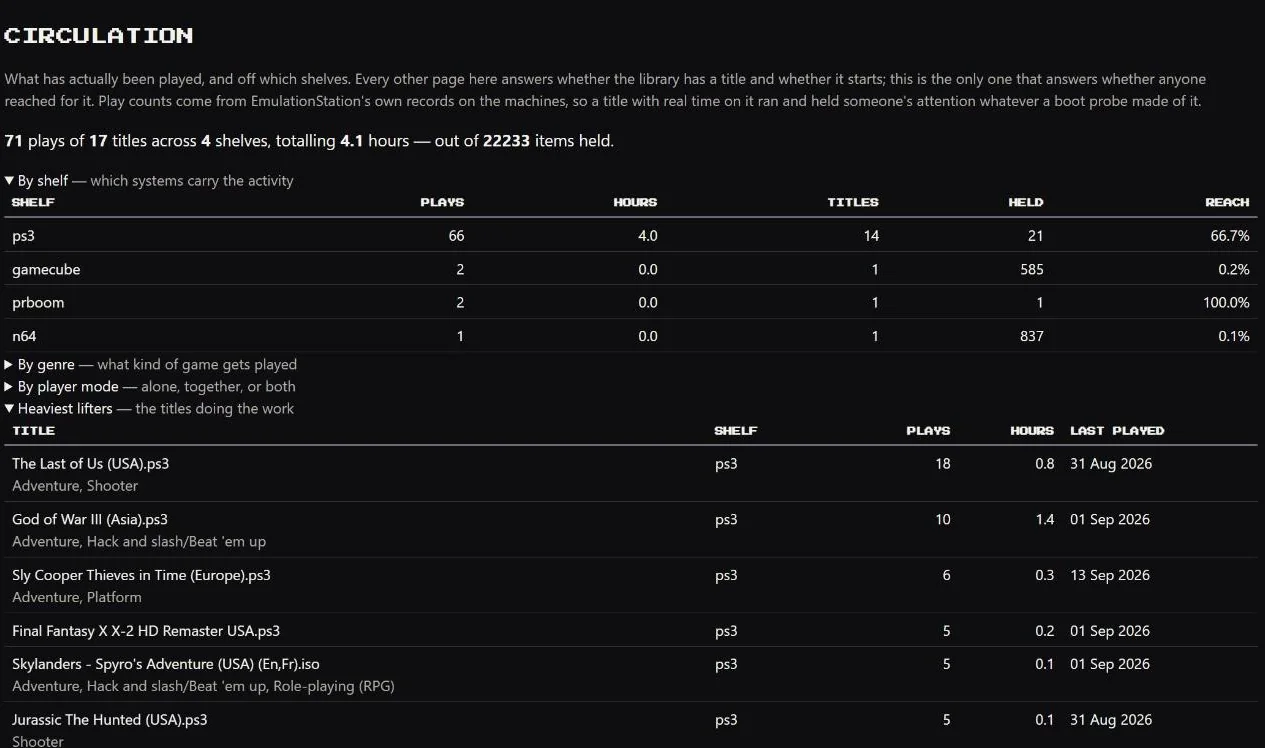
What actually gets played
Every other page answers whether you have a game and whether it starts. This one answers whether anyone reached for it. Play counts and hours are read from the machines themselves: the TV box, the Windows PCs and the handhelds.
- Plays and hours by shelf, by genre, and alone versus together.
- The titles doing the heavy lifting, and the shelves nobody opens.
- Each game's page shows its own play history, and an estimate of how it will run on machines that haven't tried it yet.
- Each household's page shows its play together and each member's, credited to whoever played. Who played.
Built in
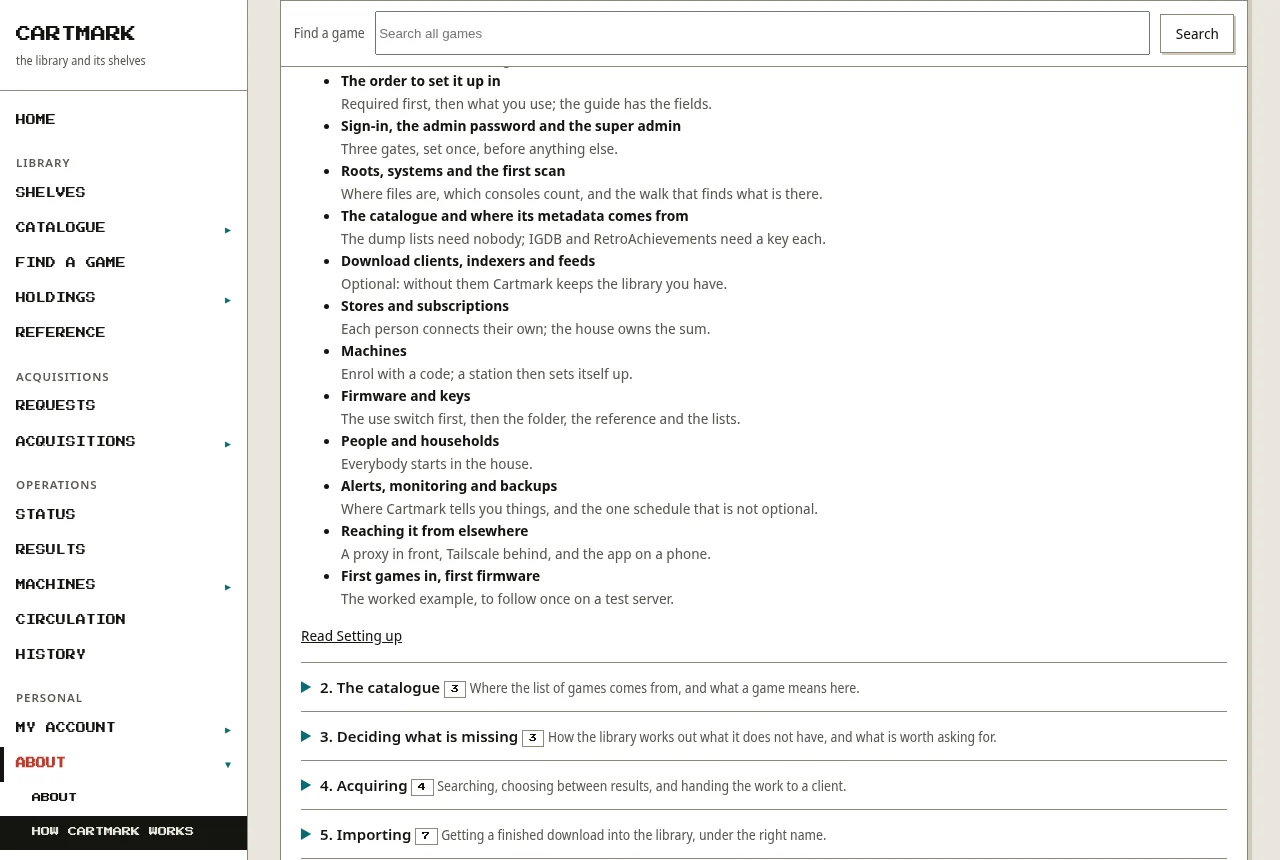
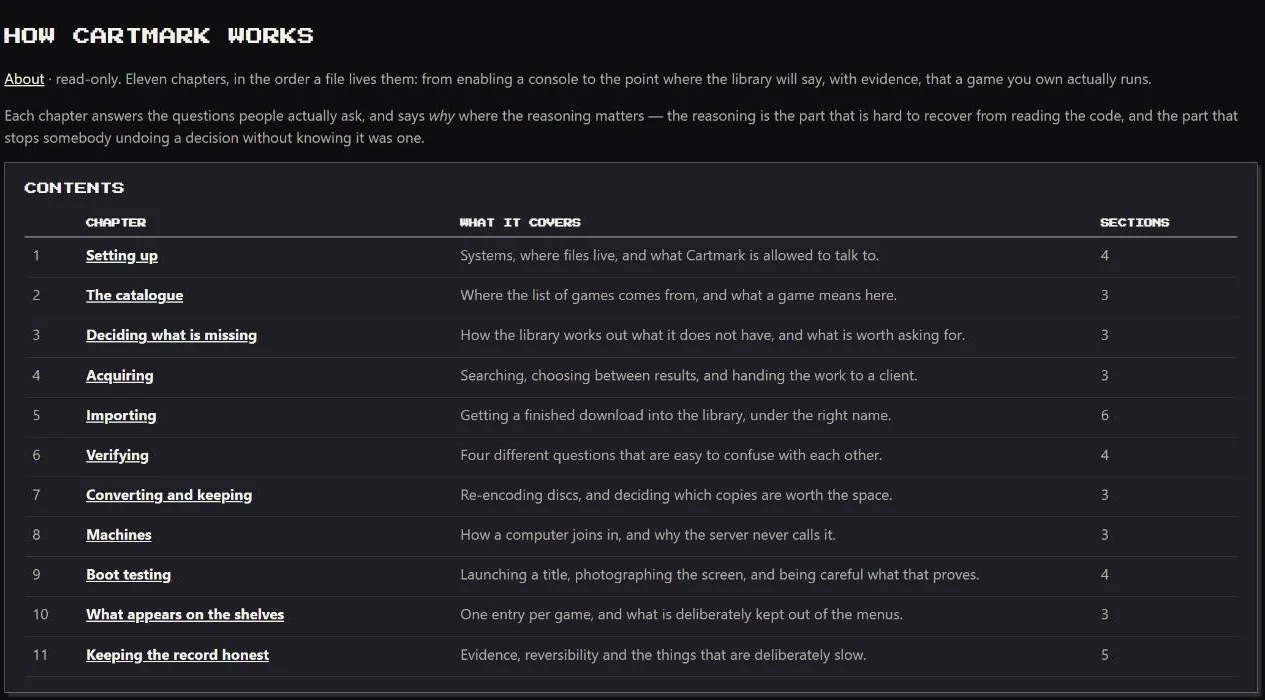
Cartmark ships with its own handbook: twelve chapters in the order a file lives them, each answering the questions people actually ask and saying why where the reasoning matters. Every page also has a status line, a history, and a log of who did what. The guides under Support, brought up to date with 0.39, are also in each PC's Cartmark folder and in the tray's Knowledge menu.
Beside it, under About, a What's new page tells every release in plain words, newest first, each point with a More part that says what changed and why. The menu marks it until you tick that you have read up to the latest.
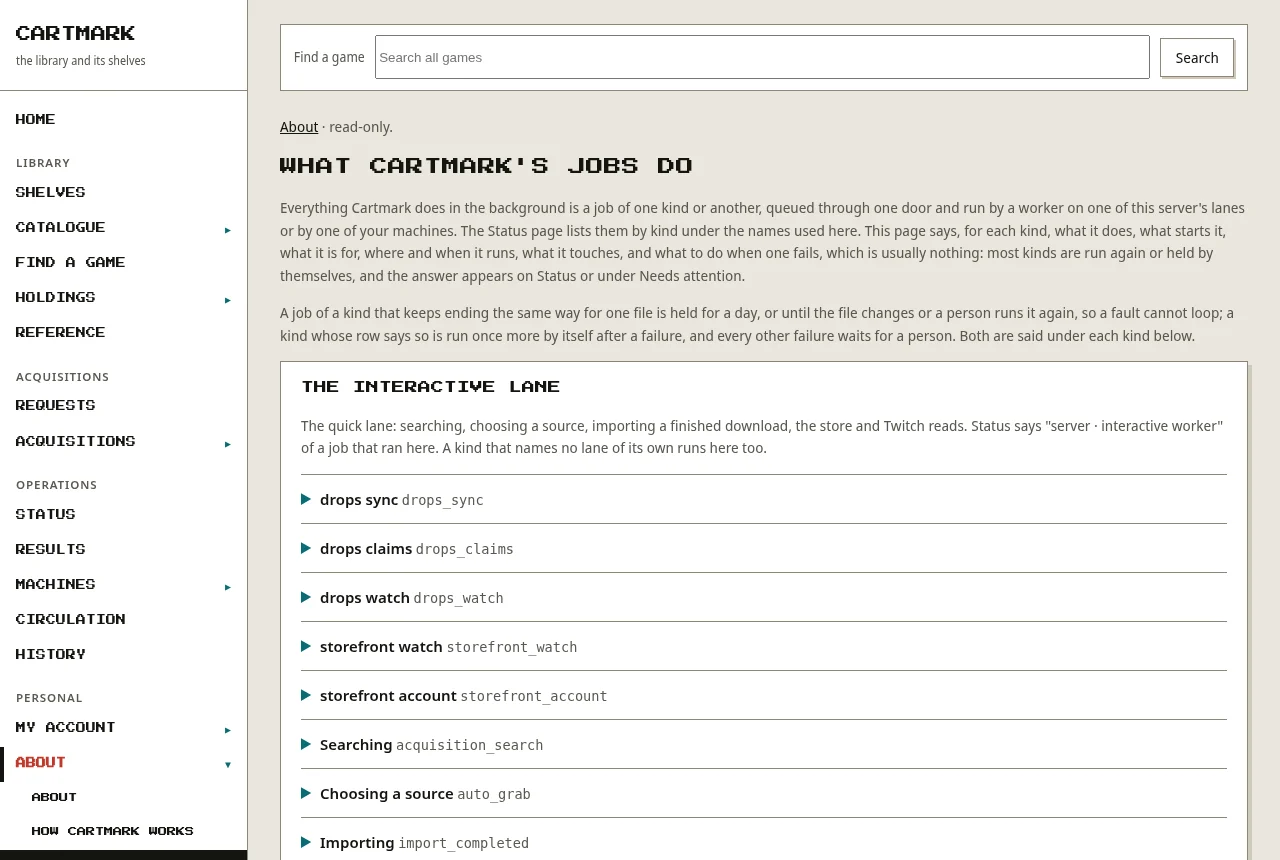
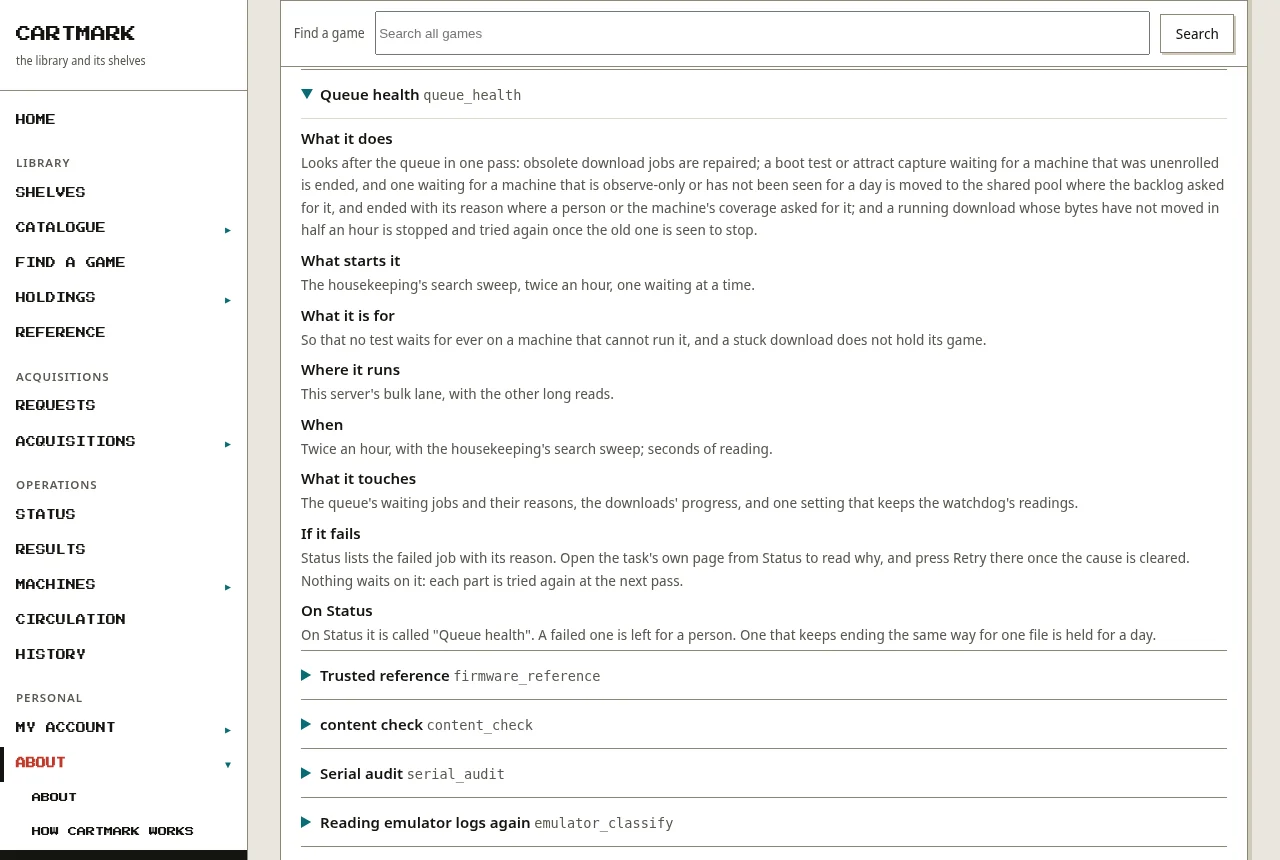
Every background job, explained. About has a page for everybody signed in that takes each kind of background job in turn: what it does, what starts it, what it is for, where and when it runs, what it touches, and what to do if it fails, which is usually nothing. The Status page names each job the same way, so a line there can be looked up here.
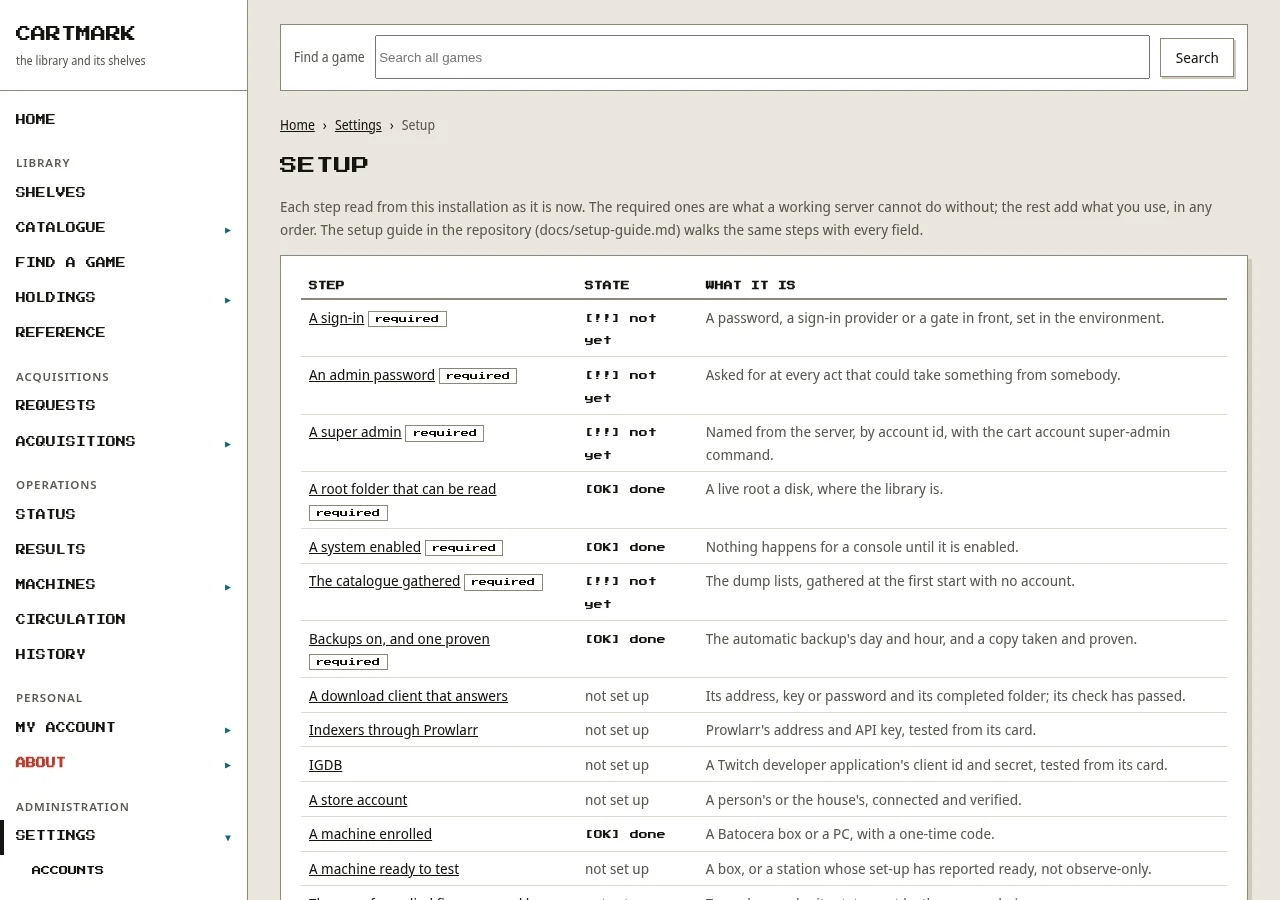
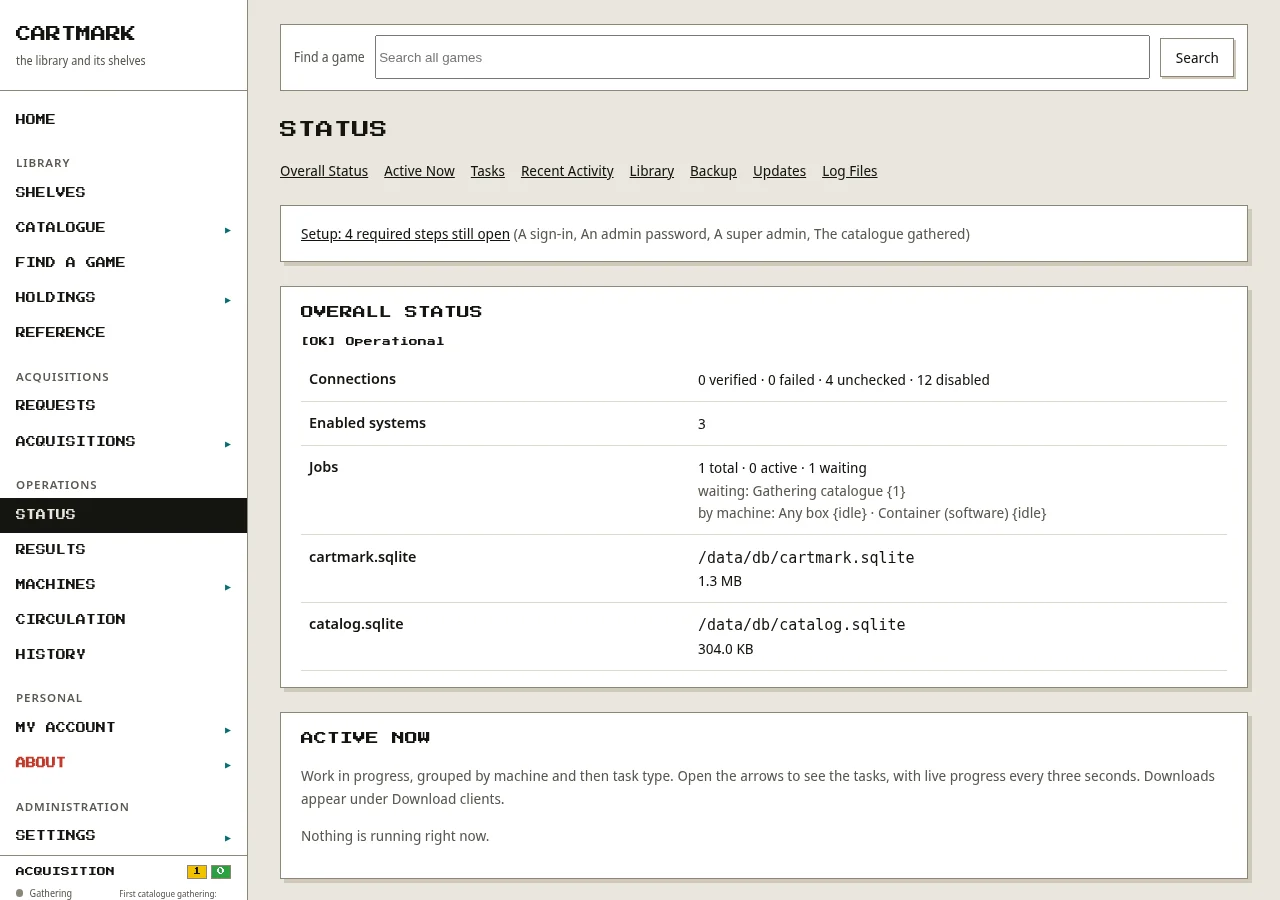
A first-run guide in the right order. Setting up starts with the seven things a working server needs (a sign-in, an admin password, a super admin, a library folder, a system, the catalogue and backups), then whatever you use, in the order the steps depend on each other. Settings › Setup lists the same steps, each read from the installation as it is now (a library folder that answers, a connection whose test passed, an enrolled machine, a proven backup) and never from a flag, with a link to the page that does it. Until the required ones are done, the Status page says how many are open on a line of its own.